Two-Factor Authentication (2FA)
Two-Factor Authentication adds a second verification step to the login, so that knowing the password is not enough to access the account. Once enabled, after introducing the username and the password, Robin asks for a temporary token generated by an authenticator application installed in the user’s phone.
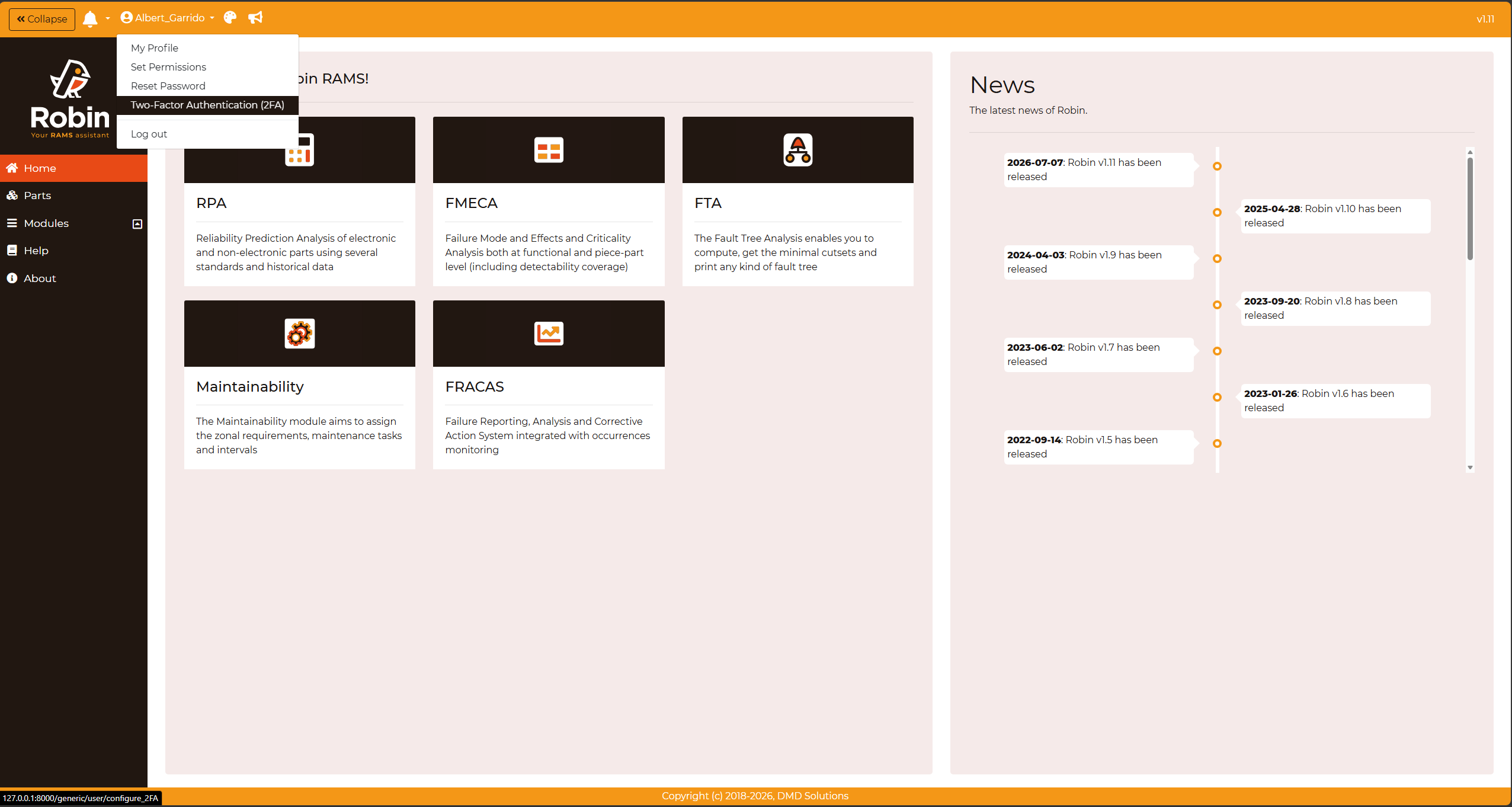
The feature is managed by each user for their own account. To open it, click on the dropdown menu of the username in the navigation bar (top bar) and select Two-Factor Authentication (2FA).
Enabling 2FA
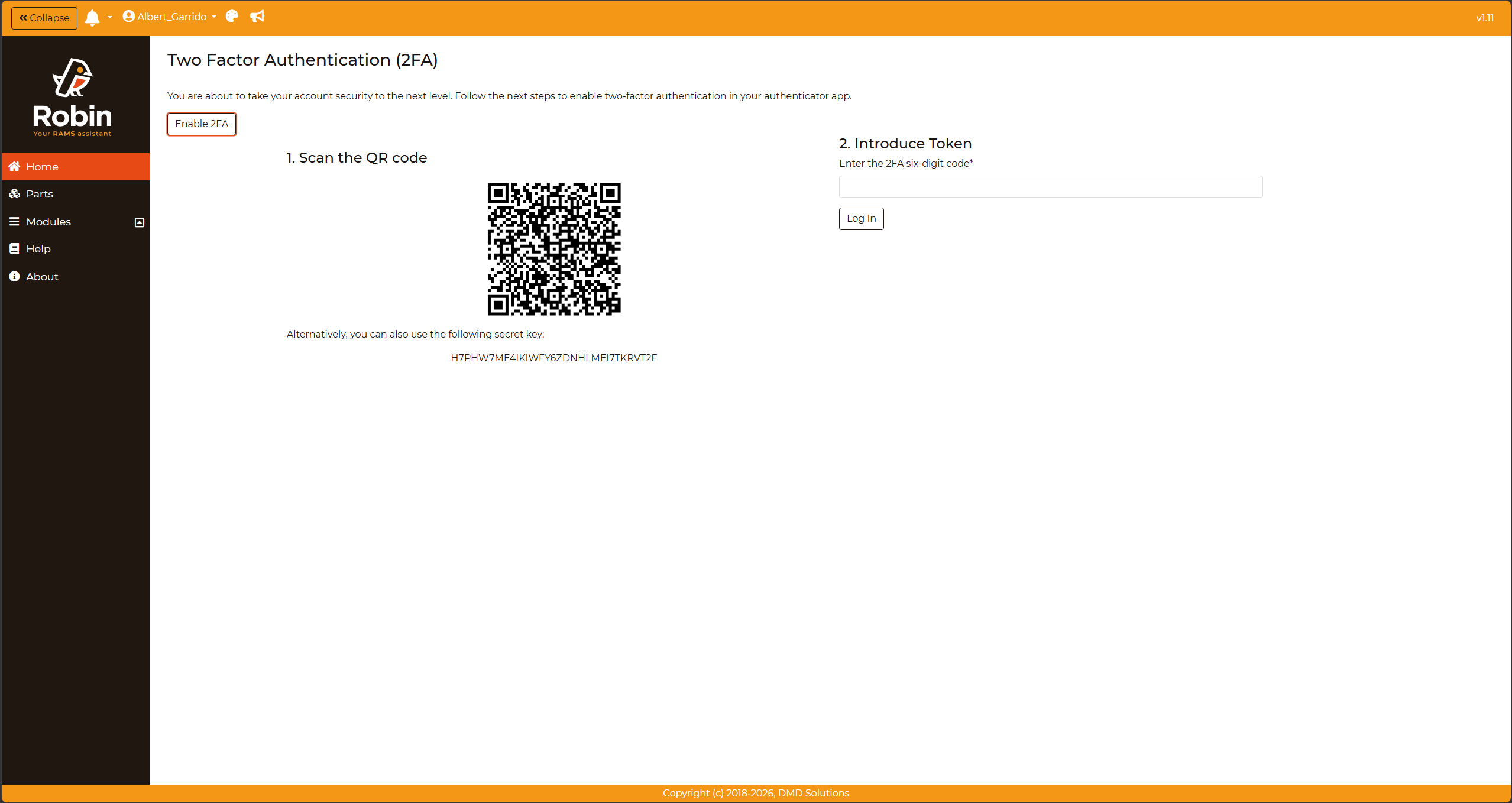
Click on Enable 2FA to start the process, which consists of three steps:
Scan the QR code: Open the authenticator application and scan the QR code displayed on screen. If the device cannot scan it, the secret key shown below the code can be introduced manually in the application instead.
Introduce Token: The authenticator application starts generating a token that changes every few seconds. Introduce the token currently displayed to prove that the application has been configured correctly.
Generate Backup Tokens: Click on
Generate Backup Tokensto obtain a list of single-use codes.
Warning
The backup tokens are the only way to access the account if the phone with the authenticator application is lost or unavailable. Store them in a safe place, since they are not shown again afterwards.
Logging in with 2FA
Once 2FA is enabled, the login has an additional step. After the username and the password have been accepted, Robin asks for the token generated by the authenticator application.
If the authenticator application is not available, one of the backup tokens generated during the configuration can be used instead.
Note
Each backup token can only be used once. It is advisable to regenerate them when few of them are left.
Managing an account with 2FA enabled
When 2FA is already active, the configuration page indicates so and offers two actions:
Regenerate Backup codes: Issues a new list of backup tokens. The previous list stops being valid.
Remove 2FA: Disables the second verification step, returning the account to a password-only login. Robin asks for a confirmation before applying it.
Warning
Removing 2FA lowers the protection of the account. It should only be done when the second factor is going to be reconfigured, for instance after replacing the phone.