Permissions
Every user has a specific set of permissions for every module. These permissions include: view, add, modify, and delete. The permissions users have depend on what an admin/superuser assign to them.

Set Permissions
As an admin/superuser, you can set the permissions of specific users in your team. To do this, the user must click on the dropdown menu on their username on the navigation bar (top), and then click the Set Permissions button. This will take the user to a page with a table filled with all the users in the team.
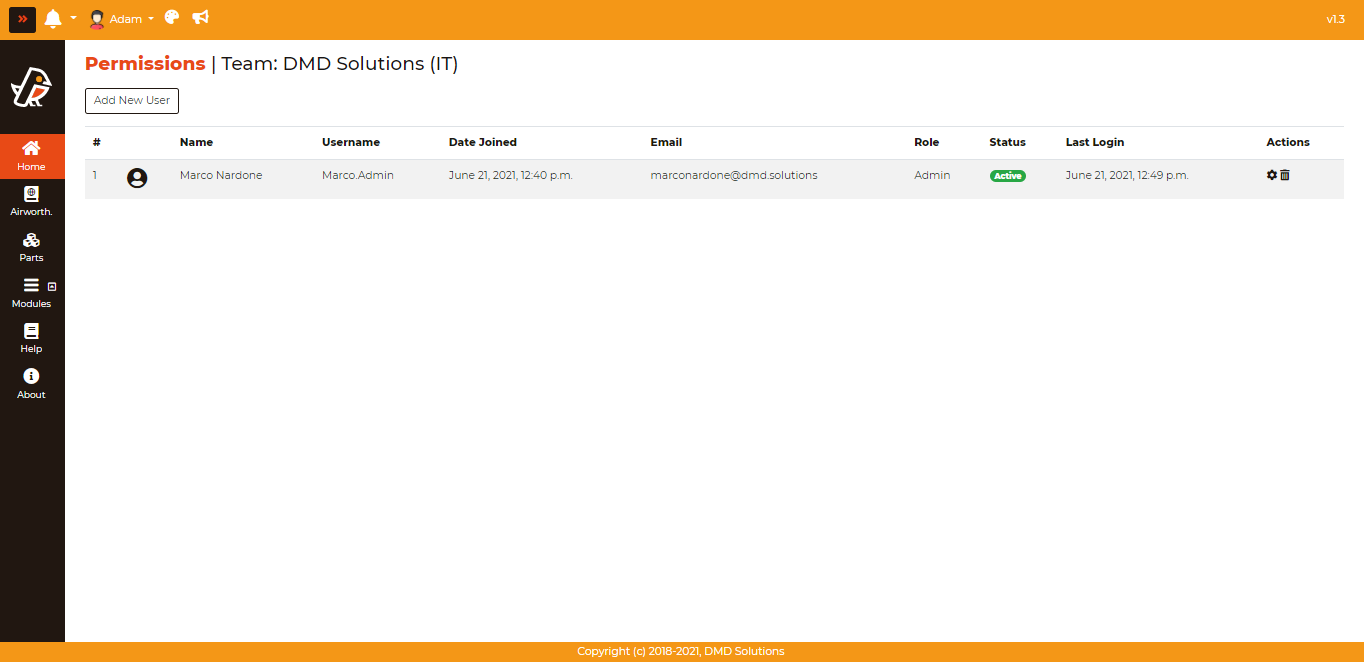
In order to set or change permissions of a user, one must click the gear icon under the “Actions” column that corresponds to the desired user.
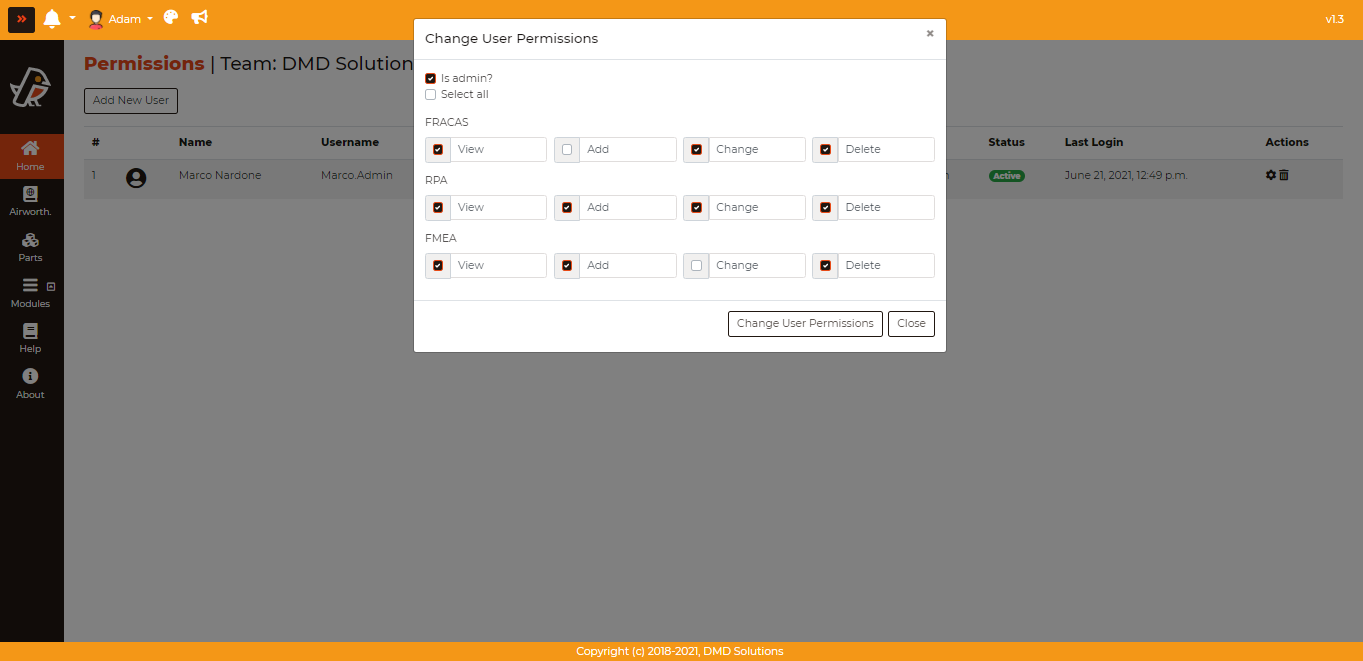
As seen above, one must select what permissions are wanted, and then click Change User Permissions to confirm them.
Note
Permissions are enforced both in the interface and in the server. The actions that a user is not allowed to perform are hidden from the screen, and they are also rejected if they are requested directly. For instance, a user with view-only permissions does not see the Delete Selected option in the RPA BOM, and a deletion request coming from such a user is refused.
Users and Teams views
The administration page is organised in two tabs:
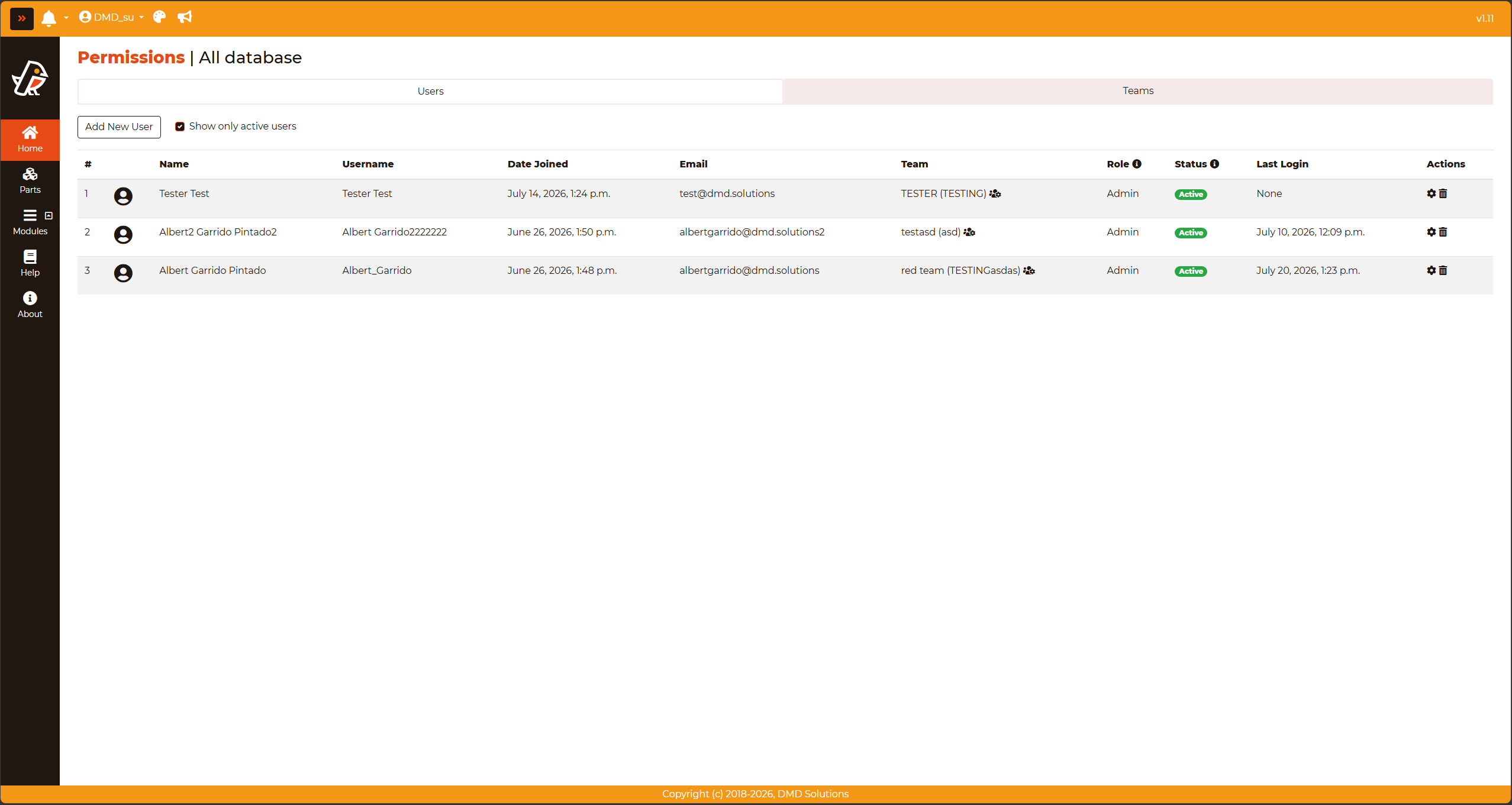
Users: The table with the users, described in the sections above. Besides the permissions, the table shows the profile picture, the username, the name, the e-mail, the team and the status of each user.
Teams: The table with the teams. For each team it shows the company, the department, the users assigned as administrators, the subscription type and the maximum number of users allowed by the subscription.
User status
Each user has a status, displayed in the Status column as an Active or Inactive badge. Only active users can log into Robin.
The status is changed by clicking directly on the badge, without having to delete and recreate the user. This is the recommended way of revoking the access of a user who leaves the team, since it preserves the history of the work they performed.
Note
Deactivating a user does not free a seat of the subscription: inactive users still belong to the team and are counted against the maximum number of users allowed by it.
The checkbox Show only active users, above the table, filters out the inactive users. It is enabled by default, so that the table shows by default only the users who can actually access Robin.
Edit a team
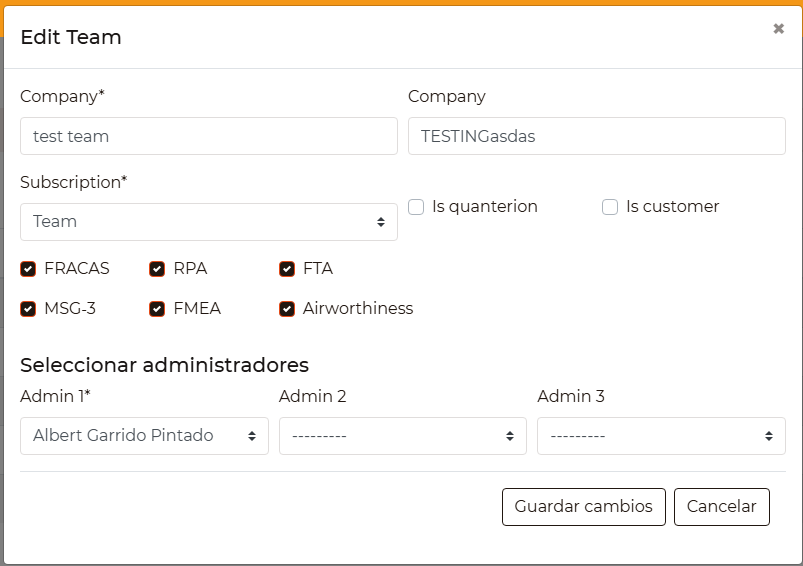
From the Teams tab, clicking on the pencil icon of the Actions column opens the Edit Team form, where the following can be modified:
Company and Department of the team
Subscription type
Administrators: Up to three users of the team can be designated as administrators. At least one is required
Modules: The modules the team has access to, i.e. FRACAS, RPA, FTA, MSG-3, FMEA and Airworthiness
Note
The modules selected here determine the modules for which permissions can later be assigned to the users of the team. As indicated below, an administrator can only set permissions on the modules that the team has purchased.
Create a New User
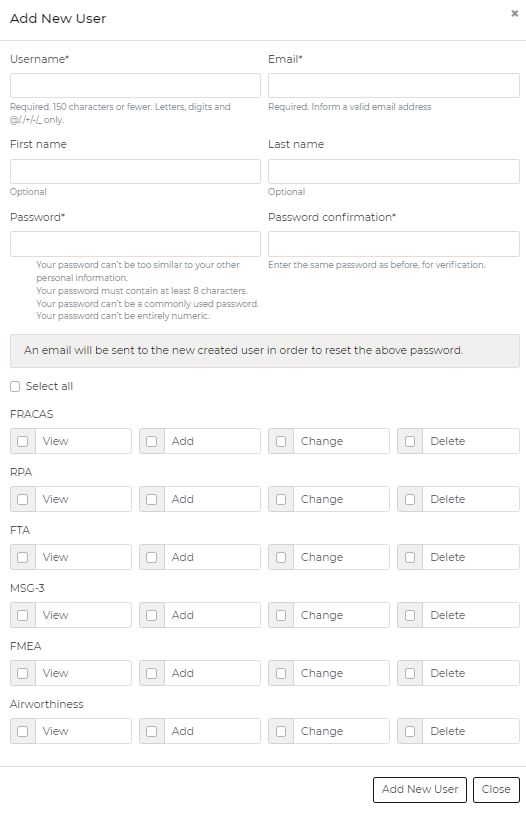
Another feature that an administrator of a team can do is to add new users to the team. This can be done by clicking the “Add New User” button, a form will be opened where information about the user can be filled, like the username, e-mail, first name, last name; a password can be set and the permissions for each module can be also assigned this user.
Note
The admin may only set permissions to the team’s purchased modules.
Reset the Password of a User
Each row of the user table has a key icon under the “Actions” column. Clicking it opens a window offering two ways of giving a user access again:
- Send a reset link to the user’s email
An email goes out to the address on the account, holding a link that lets the user choose their own password. The link is valid for 24 hours and replaces any previous one. This option is available to team administrators and superusers.
- Set a new password now
The password is written directly by whoever is at the admin page. The user’s open sessions are closed and any pending reset link stops working, so they have to sign in again with the new password. This option is reserved to superusers.
Note
Team administrators only see the first option. Setting a password directly means the administrator ends up knowing a credential the account owner never chose, and afterwards nothing distinguishes “the administrator helped” from “the administrator signed in as them”. The reset link avoids that: it lands in the user’s own mailbox and the password stays theirs.
The password written by hand has to satisfy the same rules as any other password in Robin: long enough, not entirely numeric, not one of the commonly used ones, and not too similar to the username or email.
Note
Use “Set a new password now” for a user whose mailbox cannot be reached — an account created before the address existed, an address that bounces, or someone who needs access before the email arrives. In every other case the reset link is the better option.