Change/Forget Password
In the case that a user either forgot their password or would like to change it, there are two ways to do this. In the case that the user has lost access to their account, they can go to the login page and click on “Forgot Password?”. In the case that the user still has access to their account, they have to simply click on their username on the navigation bar (top) and click on the Reset Password option.
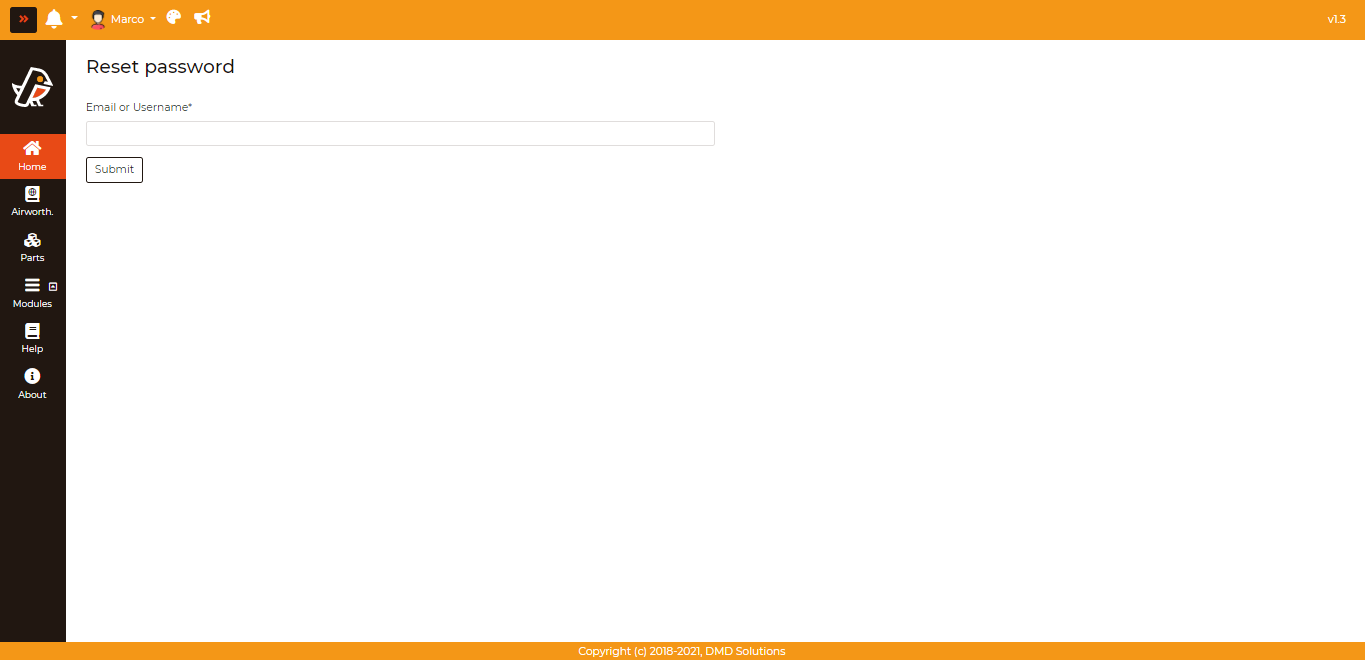
Both of these ways take the user to the same form, shown above, where one simply has to submit their username or email. From this they will receive an email that will allow them to change their password (shown below). If the user believes they have not received it, the email was most likely sent to spam.
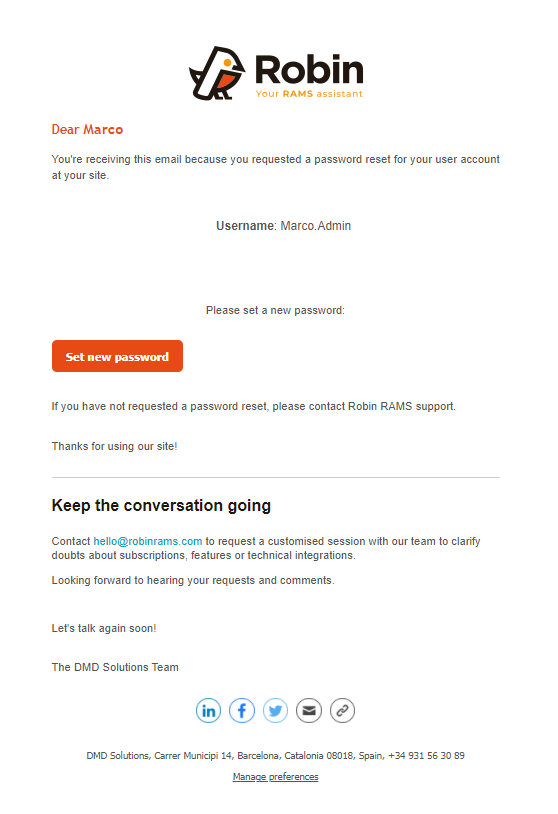
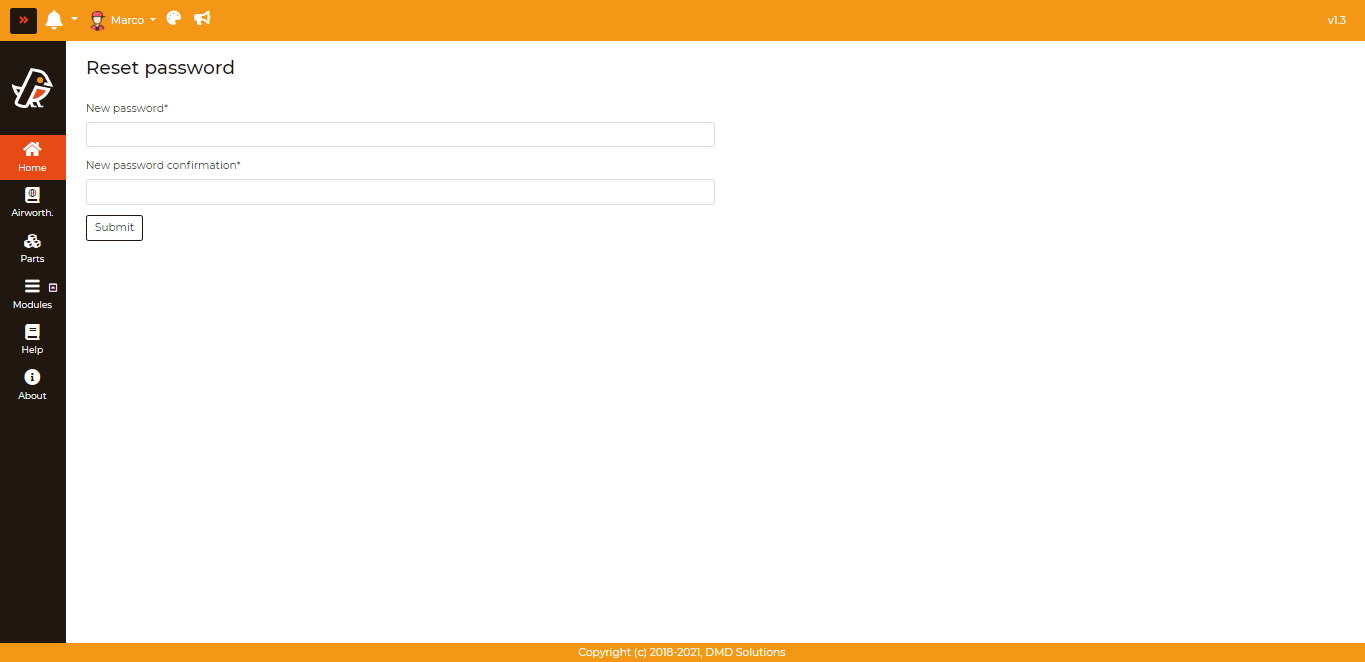
After clicking the link, the user can change their password throught the form shown below.
How long the link lasts
The link in the email is valid for 24 hours. After that it stops working and opening it leads to a “permission denied” page: simply ask for a new one from the same form, there is no limit on how many times this can be done.
A link is also single use. Once a password has been set with it, it stops working, and so does any older link still sitting in the mailbox — asking for a new link invalidates the previous one straight away.
Note
The link always uses https, since anybody holding it can set the
password of the account. Do not forward it: whoever receives it can use it
for as long as it is valid.
Warning
If you receive a reset email you did not ask for, do not open the link, and tell your administrator. It means somebody typed your username or your email address into the “Forgot Password?” form.