Introduction
Robin is the DMD Solutions’ software suite for Reliability, Availability, Maintainability and Safety analyses, including Fault Tree, FRACAS, Maintainability, Reliability Prediction and FMECA.
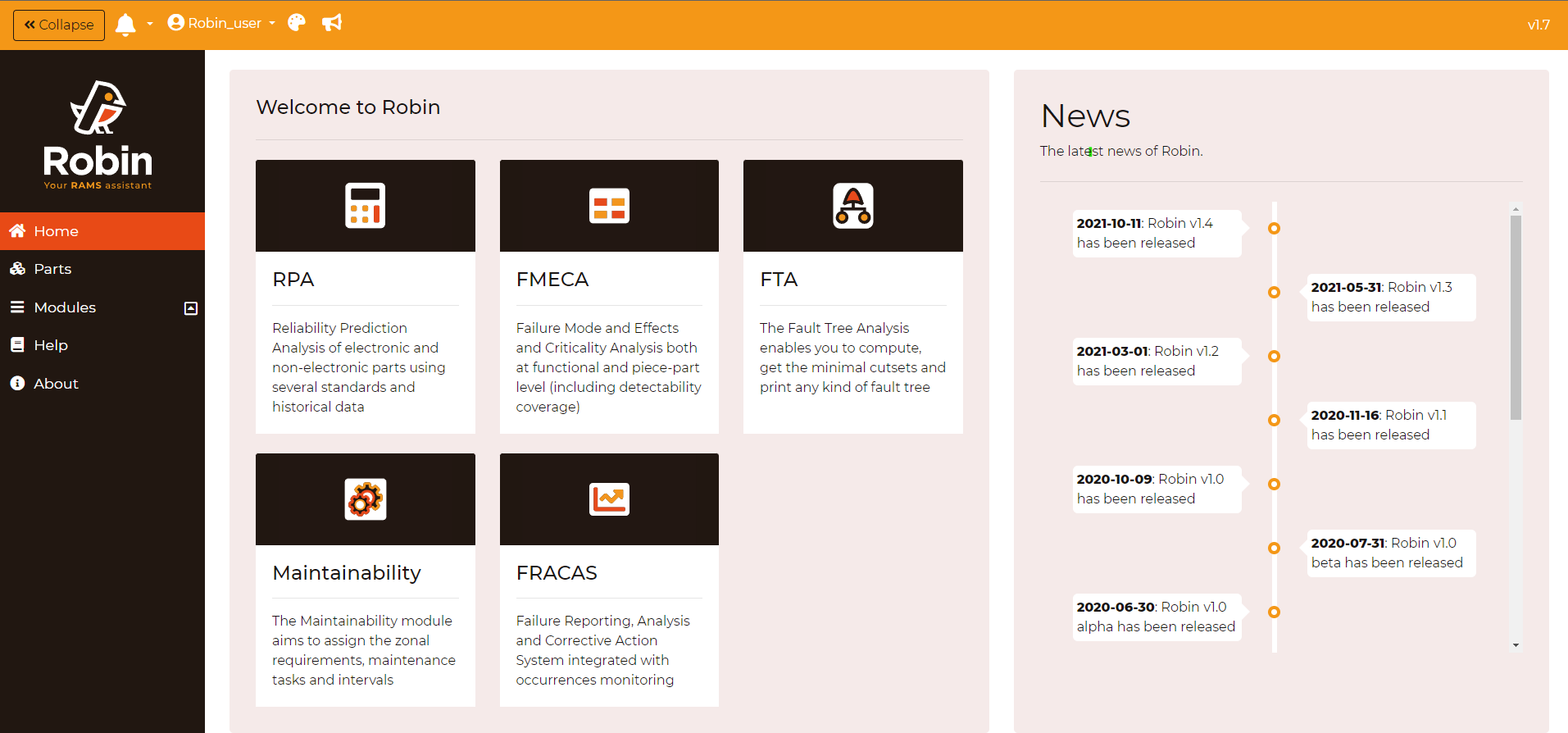
This RAMS suite implements industry-standard and innovative methodologies to perform RAMS analyses. The following modules are included:
Failure Reporting Analysis and Corrective Action System (FRACAS)
Fault Tree Analysis (FTA)
Maintainability Analyses (MSG-3 and ZSA)
Reliability Prediction Analysis (RPA)
Failure Mode Effects and Criticality Analysis (FMECA)
Robin is focused on the aerospace industry and follows the main standards and guidelines (ARP-4761, ARP-4754A, DO-178C, MIL-HDBK-217F Notice 2, FIDES 2009, HDBK-217PlusTM, NSWC-11). It is fully compatible with established RAMS methodologies and other RAMS software tools, bringing outstanding flexibility for RAMS Engineers and related disciplines.
The tool is web-based and responsive with a variety of devices (PC, laptop, tablet, phone, etc.). All changes made on the software are trackable and undoable. Reports and assessments are fully customizable to adapt to a variety of engineering environments. Our RAMS software complies with high security standards and several levels of privileges can be set to the users of a team.
Structure of projects and systems
Robin is generally structured in Projects (first level) and Systems (second level) so that the information of different users and teams is clearly separated. There are modules, such as FRACAS and RPA, where only the Project level exists:
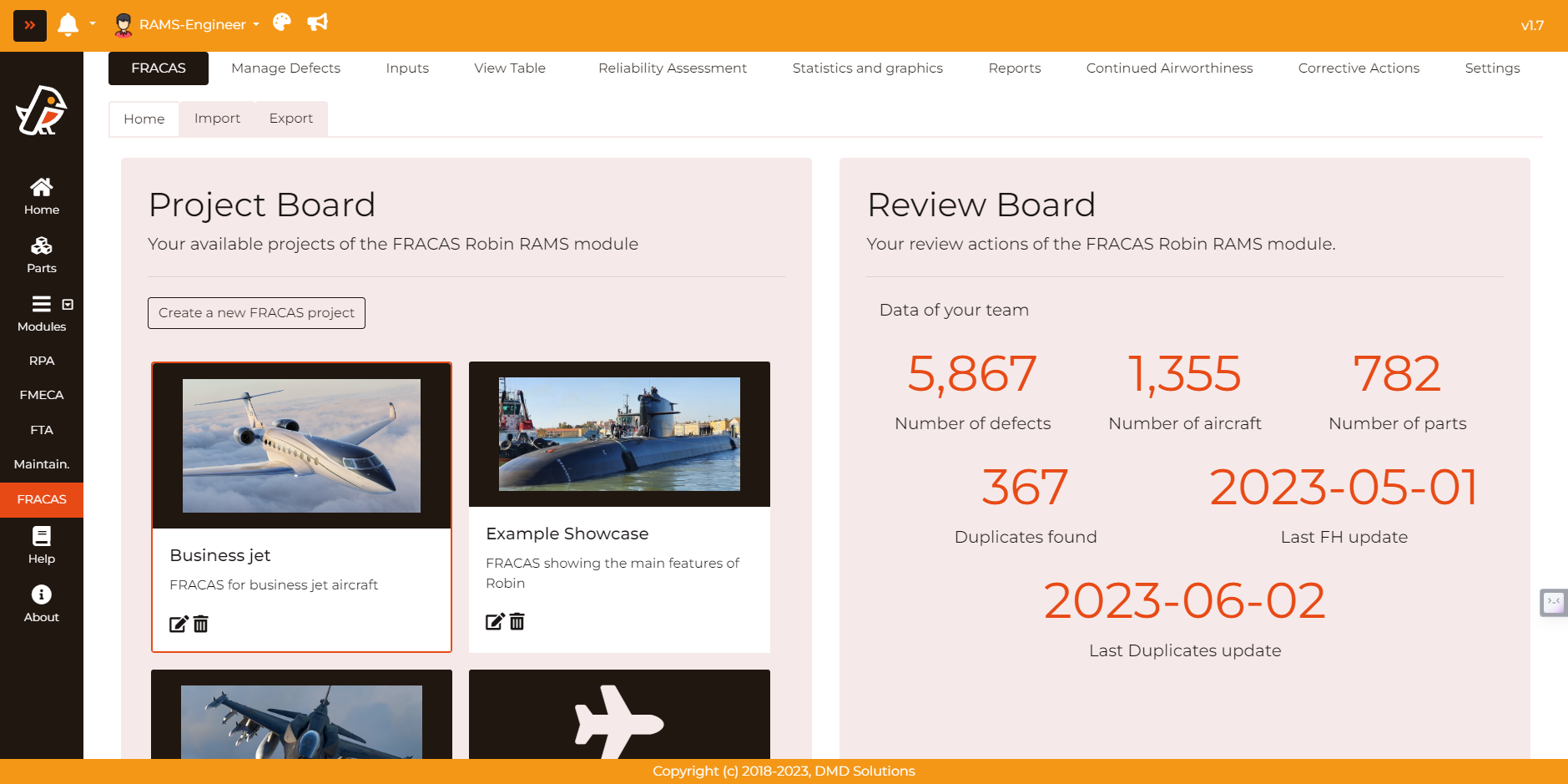
By selecting a project, all the tabs will apply only to that specific project. A new project could also be created on the home page by filling the following minimum information:
Name: Identifier of the project
Description: Description of the project
Project image: Logo or image to represent the project
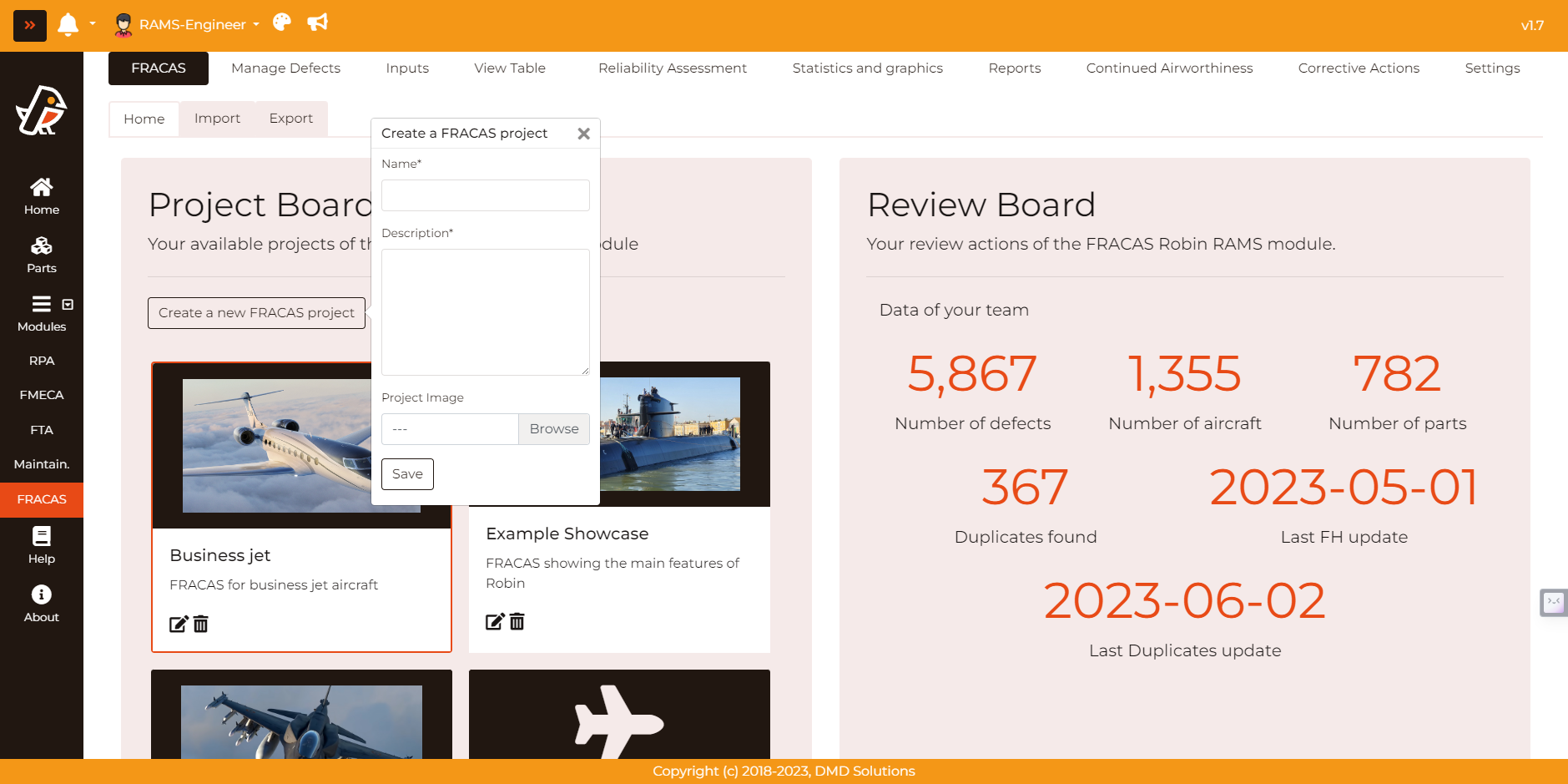
The user can also easily edit or delete an existing project.
For these modules where a System can be added (FTA, FMECA, and Maintainability), the user can create several systems inside a project. In this way, a user can create a project for a type of aircraft and systems representing the ATA chapters.
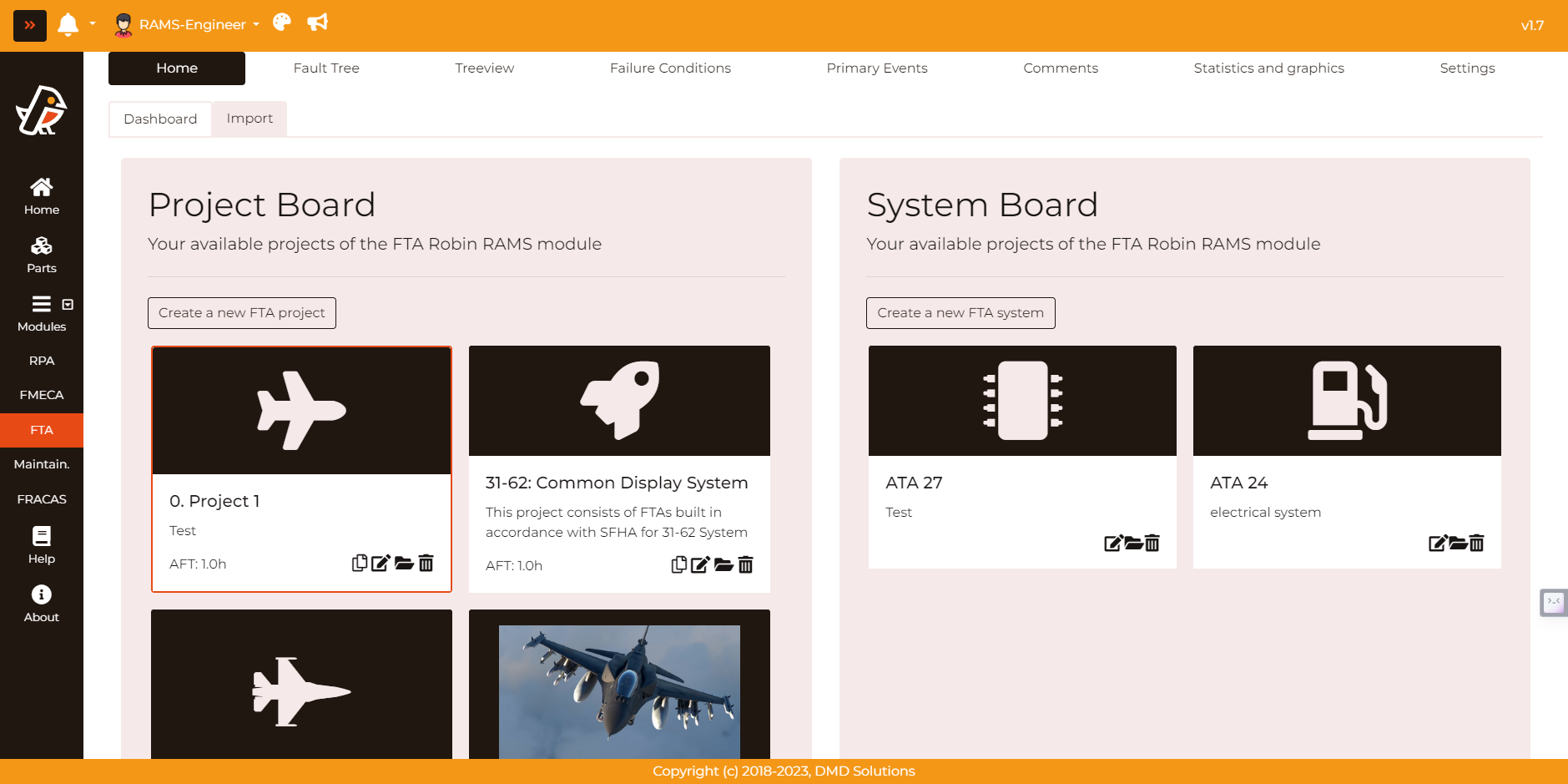
The same actions as in the projects can be performed (add, delete, and edit). Depending on the module, it is possible to duplicate the projects or systems. This action makes a copy of the existing analysis, so the user can create different versions easily.
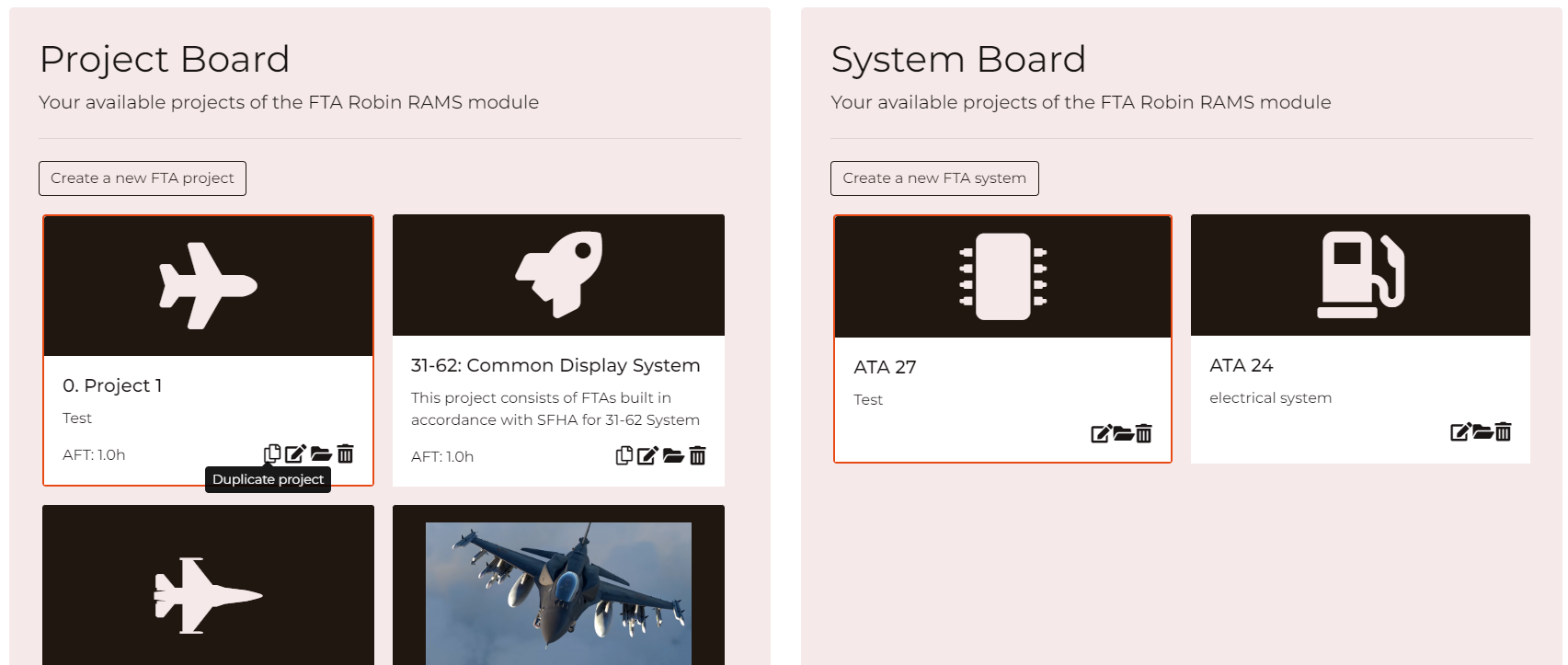
Every project and system card also shows when it was created and when it was last modified:
Created: date and time the project or system was created. A duplicated project or system counts as created when it is duplicated.
Modified: date and time of its last change. It moves when the project or system itself is edited (name, description, icon, image…) and also when its analysis changes: the nodes of a fault tree, the rows of an FMECA, the MSIs and tasks of a Maintainability system, the items of an RPA BOM, the aircraft, flight hours or defects of a FRACAS project… A change in a system also updates the date of its project. Opening a page or running a calculation is not a modification.
The dates are shown to the minute in Central European Time.
Note
Projects and systems created before these dates were recorded show -. Their modification date appears with their next change; their creation date cannot be recovered and stays as -.
The projects of the Project Board can be sorted with the Sort drop-down next to the Create a new project button, in every module. In FTA and FMECA, the System Board has the same Sort next to the Create a new system button, shown once a project is selected:
A-Z: alphabetical order of the names. This is the default order.
Last created: the most recently created first.
Last modified: the most recently modified first.
The button right after the drop-down reverses the order: A-Z becomes Z-A, Last created becomes First created (the oldest first) and Last modified becomes First modified (the least recently modified first). Press it again to go back. Its icon shows the order in use.
Projects and systems with no date (-, see the note above) count as the oldest: they go last, or first when the order is reversed. The chosen order is remembered for each module and board in your browser.
Note
The System Board of the Maintainability module keeps its own sort button, with ATA, Analysis Type, Creation Date and Alphabetically.
Note
Depending on the module, it may be necessary to fill specific parameters to create a project or a system. This is the case for the FTAs, where the user needs to give the Average Flight Time (AFT) too.
Screen sizes
The home page of every module adapts to the size of the screen:
Desktop and laptop: the Project Board and the System Board (Libraries & Standards in RPA, Review Board in FRACAS) sit side by side and fill the window, and only the cards inside each board scroll. The cards keep their usual size, two in a row on a normal screen. On a bigger screen, or when you zoom out in the browser, more cards fit in each row instead of the cards growing; on a narrow board they go one per row. On short screens, such as a 1366x768 laptop, the headings of the boards get smaller to leave more room for the cards. If the window is too short for that, the boards keep their full length and the page scrolls instead.
Tablet, phone or a narrow window (less than about 1000 pixels wide): the boards are shown one below the other, at full width, and the page scrolls. Selecting a project takes you down to the System Board with its systems. The menu of the module becomes a single line that scrolls sideways.
The windows to create or edit a project or a system always keep their title and the Save and Close buttons in sight. When the fields do not fit on the screen, they scroll between them. Zooming out of the page does not make these windows smaller: they keep their size on the screen, never narrower than a third of the window, with all their text and fields. Zooming in makes them grow, up to three quarters of the window.